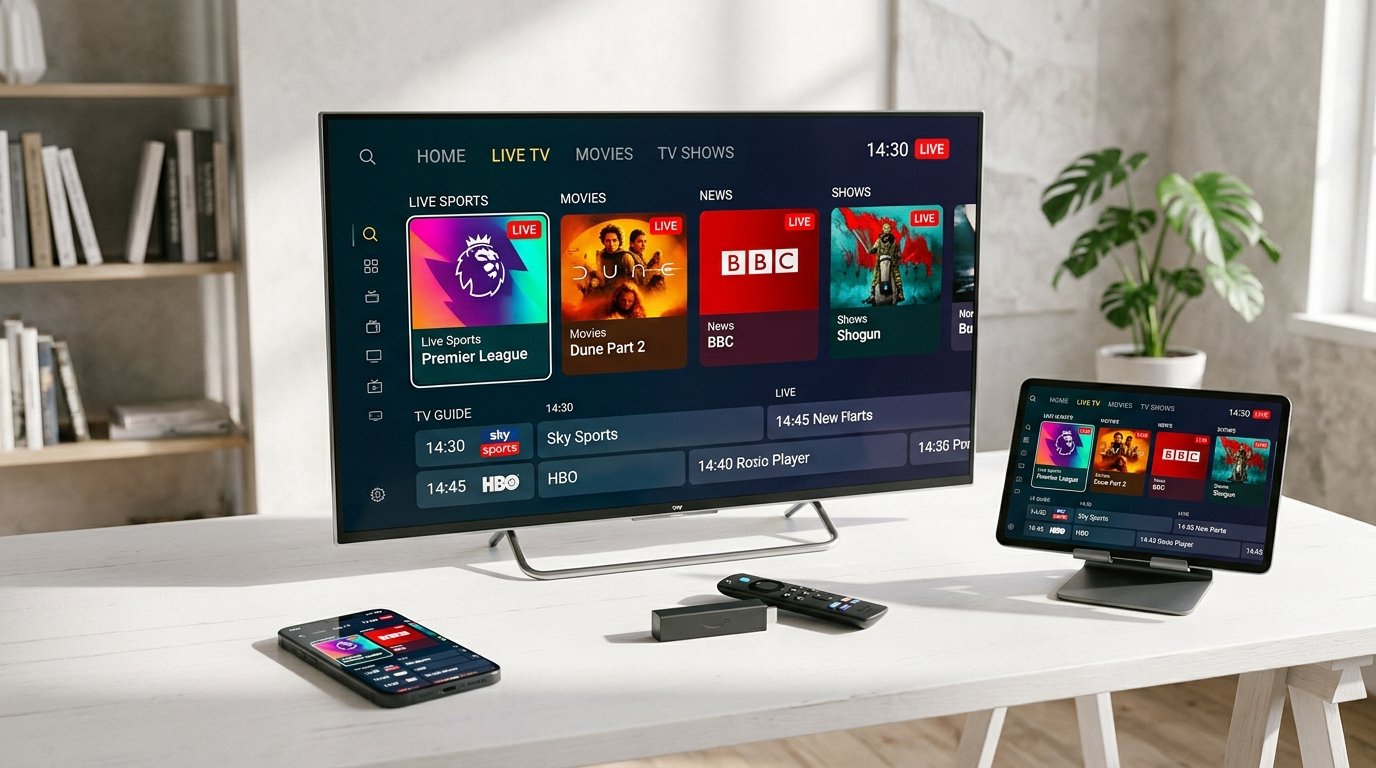
The Amazon Fire TV Stick remains the world’s most dominant streaming dongle, powering tens of millions of living rooms. Thanks to its lightweight FireOS software, dedicated GPU hardware decoding, and support for 4K Ultra HD at 60 frames per second with Dolby Vision, it provides the ultimate hardware foundation for IPTV streaming.
However, setting up an IPTV service like NufuTV requires bypassing the default Amazon Appstore restrictions and properly configuring a dedicated video player application like TiviMate or IPTV Smarters Pro. In this definitive 2026 handbook, our senior streaming engineers walk you through every step, screen by screen.
⚡ Key Takeaways for 2026:
- FireOS 7 and FireOS 8 hide Developer Options by default — we show you the 7-click unlock trick.
- TiviMate is the recommended player for the most authentic cable-like TV guide experience.
- IPTV Smarters Pro is best for users who prioritize dedicated VOD movie and series browsing.
- Connecting via Xtream Codes API is faster and auto-updates channels compared to static M3U files.
Hardware Compatibility: Which Firestick Do You Need?
While NufuTV streams can theoretically run on any device running FireOS 5.0 or newer, your viewing experience depends directly on the processor and Wi-Fi chip inside your Firestick:
| Firestick Model | Max Resolution | Wi-Fi Standard | 4K Sports Performance |
|---|---|---|---|
| Fire TV Stick 4K Max (Gen 2) | 4K @ 60 FPS HDR10+ | Wi-Fi 6E (Tri-band) | ★★★★★ (Flawless) |
| Fire TV Stick 4K (Gen 2) | 4K @ 60 FPS | Wi-Fi 6 (Dual-band) | ★★★★★ (Excellent) |
| Fire TV Cube (Gen 3) | 4K @ 60 FPS | Wi-Fi 6E + Built-in LAN | ★★★★★ (Top Tier) |
| Fire TV Stick Lite / Standard HD | 1080p @ 60 FPS | Wi-Fi 5 (802.11ac) | ★★★☆☆ (FHD Only) |
Step 1: Unlocking Developer Options in FireOS
In recent FireOS system updates, Amazon hid the “Developer Options” menu by default to discourage sideloading. Here is how to reveal it:
- Turn on your Firestick and go to Settings (the gear icon on the far right).
- Select My Fire TV (or Device & Software).
- Click on About.
- Hover over the first item (e.g., Fire TV Stick 4K) and click the Select button on your remote 7 times rapidly.
- You will see a notification banner: “No need, you are already a developer.”
- Press the Back button. You will now see Developer Options listed directly under About!
- Click Developer Options ➜ Install unknown apps (or Apps from Unknown Sources) and turn it ON.
Step 2: Installing the Downloader Utility
Downloader is the gold-standard browser utility used to download external APK packages safely to your Fire TV:
- From the Home screen, click on Find ➜ Search.
- Type
Downloaderusing the on-screen keyboard. - Select the orange Downloader icon by AFTVnews and click Get / Download.
- Once installed, launch Downloader and click Allow when prompted for storage permissions.
Step 3: Installing Your IPTV App (Smarters Pro or TiviMate)
In Downloader’s URL input box, you can enter direct numeric shortcodes to download verified application packages:
Option A: IPTV Smarters Pro
The best all-in-one suite for live channels, movies, and TV series with built-in trailers.
Enter 78522 into Downloader, wait for redirect, and click Install.
Option B: TiviMate IPTV Player
The most polished, responsive cable-like TV guide interface with instant zapping.
Enter 278077 into Downloader to install the latest official APK.
Step 4: Connecting Your NufuTV Credentials
Once your app is opened, configure it using the high-speed Xtream Codes API (always preferred over static M3U links because it dynamically syncs channel updates and EPG):
- Select Add Playlist or Login with Xtream Codes API.
- Playlist Name: Enter
NufuTV. - Username: Paste your account username received on WhatsApp.
- Password: Paste your account password received on WhatsApp.
- Server URL: Enter the streaming domain URL provided by our team.
- Click Add User / Done.
Your Firestick will now download the complete database of 25,000+ live channels and 100,000+ on-demand movies. Depending on your internet connection, initial sync takes only 10 to 30 seconds.
Optimizing Firestick for 4K 60FPS Streaming
To ensure buttery-smooth playback during high-intensity sports action (Premier League, NFL, Champions League):
- Match Original Frame Rate: Go to Firestick Settings ➜ Display & Sounds ➜ Display ➜ Match Original Frame Rate ➜ Turn ON.
- Color Depth: Set to Up to 12 bits for richer HDR colors.
- Hardware Acceleration: Inside TiviMate or IPTV Smarters, set Video Decoder to Hardware.
- Clear Cache Weekly: Firestick memory is limited (8GB). Regularly clear app cache in Settings ➜ Applications ➜ Manage Applications.
Get Your NufuTV Credentials Now
Join thousands of Firestick streamers enjoying 25,000+ 4K channels and sports with 0 buffering. Delivered to your WhatsApp within 3 minutes!
Order Firestick Subscription on WhatsAppPublished by the NufuTV engineering team. Delivering enterprise-grade streaming reviews, installation tutorials, and cord-cutting insights to thousands of daily readers.
NufuTV 1-Year Pass
Unlock 25,000+ channels, 4K sports & 100,000+ VOD for just $7.49/mo.
- ✓ 25,000+ Live Channels (4K/FHD)
- ✓ All Premium Sports & PPV
- ✓ 9.3 Anti-Freeze CDN
- ✓ 3-Min Instant WhatsApp Setup
Need Setup Help?
Our technical agents are online 24/7 on WhatsApp to assist you with device configuration.
Chat with Tech Support →